YOURLS-Upload-and-Shorten
Configuration Guide
Detailed configuration options for the Upload and Shorten Advanced plugin.
Accessing Settings
Access the settings via: Admin Panel → Plugins → Upload Settings
Admin Settings
Basic Configuration
| Setting | Description | Default | Notes |
|---|---|---|---|
| Max File Size | Maximum file size for uploads | 10 MB | Can be increased up to PHP’s upload_max_filesize limit |
| Allowed File Types | Comma-separated list of allowed extensions | jpg,jpeg,png,gif,pdf,doc,docx,txt,zip | Case-insensitive |
| File Retention | How long to keep files before deletion | Never | Options: Never, 24 Hours, 7 Days, 31 Days, 90 Days, Custom |
| Storage Location | Directory where files are stored | /uploads/ |
Must be web-accessible and writable |
Frontend Upload Settings
| Setting | Description | Default | Notes |
|---|---|---|---|
| Frontend Uploads | Allow public users to upload files | Disabled | Enable with caution |
| Frontend Max Size | Maximum file size for frontend uploads | 5 MB | Should be lower than admin limit |
| Frontend File Types | Allowed file types for frontend uploads | jpg,jpeg,png,gif,pdf,txt | Should be more restrictive than admin |
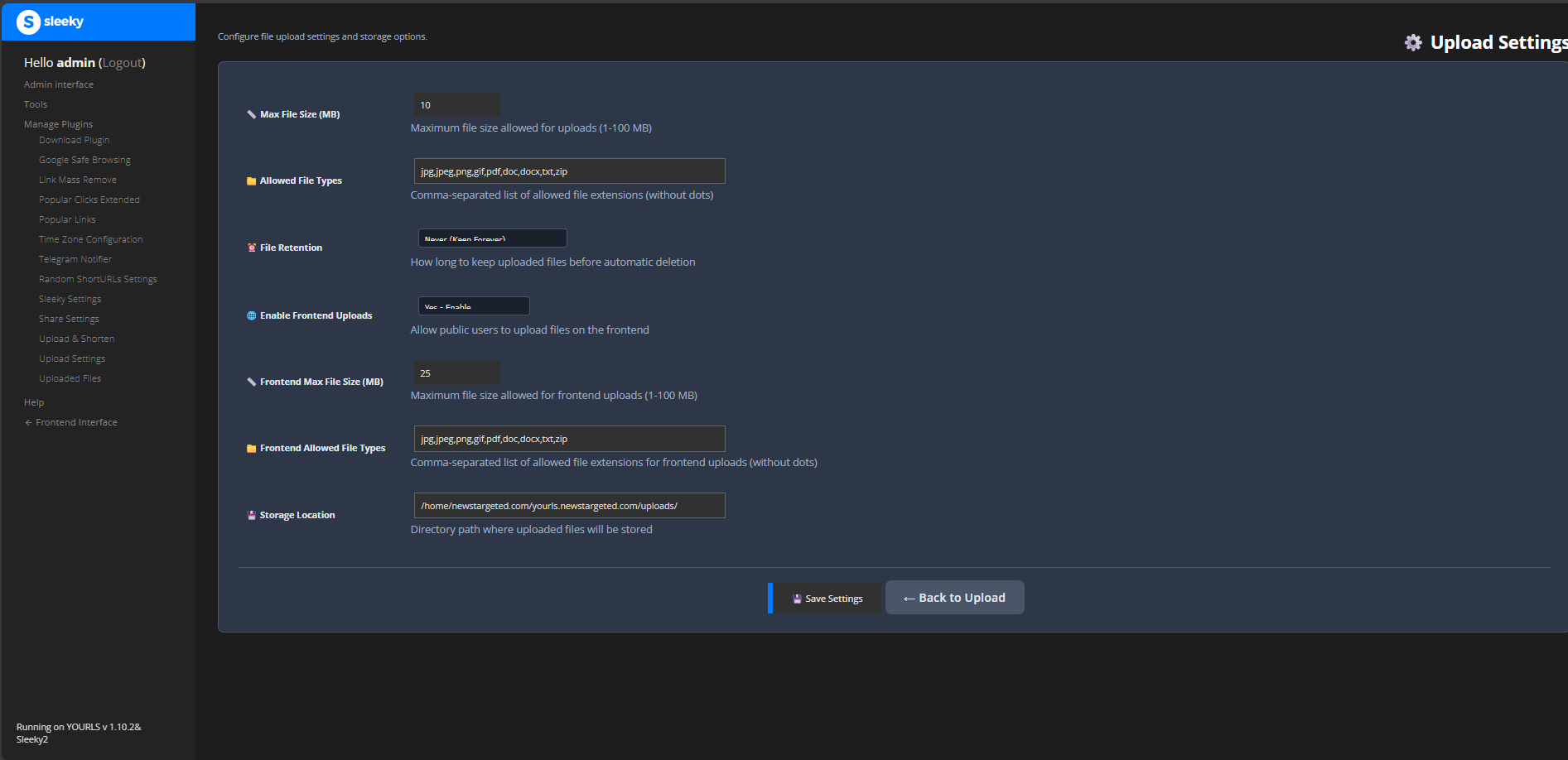 Configure all plugin settings from the intuitive admin interface
Storage Locations
The plugin supports multiple storage locations for organizing your files.
Configuring Storage Locations
- Navigate to Upload Settings in admin panel
- Click “Add Storage Location”
- Configure the following:
- Location Name - Descriptive name for the storage location
- Directory Path - Relative or absolute path to storage directory
- Max File Size - Size limit for this location
- Allowed Types - File types allowed in this location
- Public Access - Whether files are publicly accessible
Storage Location Features
- Configure different paths for different file types
- Set per-location size limits
- Enable/disable locations individually
- Monitor storage statistics per location
- Test storage location accessibility before saving
Best Practices
- Use separate locations for images, documents, and archives
- Set appropriate size limits for each location
- Regularly monitor storage usage
- Test accessibility after configuration changes
File Expiration Settings
Configure automatic file cleanup to manage storage space.
Available Retention Periods
- Never - Keep files indefinitely (default)
- 24 Hours - Delete after 1 day (good for temporary shares)
- 7 Days - Delete after 1 week (good for short-term sharing)
- 31 Days - Delete after 1 month (balanced approach)
- 90 Days - Delete after 3 months (longer retention)
- Custom - Set your own retention period in days
How It Works
- Files are marked with an expiration date on upload
- A daily cron job checks for expired files
- Expired files are automatically deleted from storage
- Associated short URLs are removed from database
- Statistics are updated accordingly
Setting Up Automatic Cleanup
The plugin includes a built-in cleanup routine that runs when:
- The admin panel is accessed
- A new file is uploaded
- Settings are saved
For more reliable cleanup, set up a cron job:
# Add to your crontab
0 2 * * * /usr/bin/php /path/to/yourls/user/plugins/YOURLS-Upload-and-Shorten-Advanced/cleanup.php
Security Features
The plugin includes multiple security layers to protect your installation.
Built-in Security
- CSRF Protection - All forms include CSRF tokens
- MIME Validation - Files are validated by content, not just extension
- Path Traversal Prevention - Prevents directory traversal attacks
- Rate Limiting - Prevents abuse with per-IP upload limits
- Content Scanning - Detects malicious code in uploads
- Dangerous Extension Blocking - Blocks potentially harmful file types
File Validation
Files are validated on multiple levels:
- Extension Checking - Verifies file extension is allowed
- MIME Type Validation - Checks actual file content type
- Content Scanning - Scans file content for malicious code
- Size Limit Enforcement - Ensures file doesn’t exceed limits
- Dangerous Extension Blocking - Blocks executables and scripts
Protected File Types
The following extensions are always blocked for security:
- Executables:
.exe,.com,.bat,.cmd,.sh - Scripts:
.php,.asp,.aspx,.jsp,.py,.rb - Archives with executables:
.jar,.war - System files:
.dll,.so,.dylib
Upload Directory Protection
The plugin automatically creates a .htaccess file in the upload directory with:
# Prevent PHP execution
<Files *.php>
    deny from all
</Files>

# Block dangerous file types
<FilesMatch "\.(exe|com|bat|cmd|sh|dll|so|dylib)$">
    deny from all
</FilesMatch>

# Allow only specified file types
<FilesMatch "\.(jpg|jpeg|png|gif|pdf|doc|docx|txt|zip)$">
    Allow from all
</FilesMatch>
PHP Configuration
Ensure your PHP configuration supports file uploads:
Required php.ini Settings
file_uploads = On
upload_max_filesize = 20M     # Adjust as needed
post_max_size = 25M           # Should be larger than upload_max_filesize
max_execution_time = 300      # For large file uploads
memory_limit = 256M           # For processing large files
Checking Current Limits
You can check your current PHP limits in the Upload Settings page, which displays:
- Maximum upload size
- Maximum post size
- Memory limit
- Execution time limit
Database Configuration
The plugin creates two database tables:
yourls_upload_files- Stores file metadatayourls_upload_settings- Stores plugin configuration
These tables are created automatically on plugin activation.