YOURLS-Upload-and-Shorten
Usage Guide
Step-by-step instructions for using the Upload and Shorten Advanced plugin.
Admin Upload
Upload files through the admin panel with full control over settings.
Steps
- Go to Admin Panel → Upload & Shorten
- Click “Choose File” or drag and drop a file into the upload area
- Optionally customize the following:
- Custom Short URL - Choose your own short URL keyword
- Title - Add a descriptive title for the file
- Storage Location - Select where to store the file
- Expiration - Set when the file should be deleted
- Click “Upload & Create Short URL”
- Your short URL will be generated instantly
- Copy the URL to share with others
Upload Options
- Custom Keywords - Create memorable short URLs
- Title/Description - Add metadata for easier management
- Storage Selection - Choose from configured storage locations
- Expiration Settings - Set automatic deletion timeframe
- Privacy Options - Configure access restrictions (if enabled)
Frontend Upload
Allow public users to upload files through your YOURLS frontend.
Enabling Frontend Uploads
- Go to Admin Panel → Upload Settings
- Set “Enable Frontend Uploads” to “Yes”
- Configure frontend-specific settings:
- Maximum file size for public uploads
- Allowed file types for public users
- Rate limiting settings
- Save settings
Using Frontend Upload
- Visit your YOURLS homepage
- Look for the “Upload & Shorten File” section
- Select a file to upload
- Optionally add a custom short URL (if enabled)
- Click “Upload & Shorten”
- Copy the generated short URL
- Share the link with others
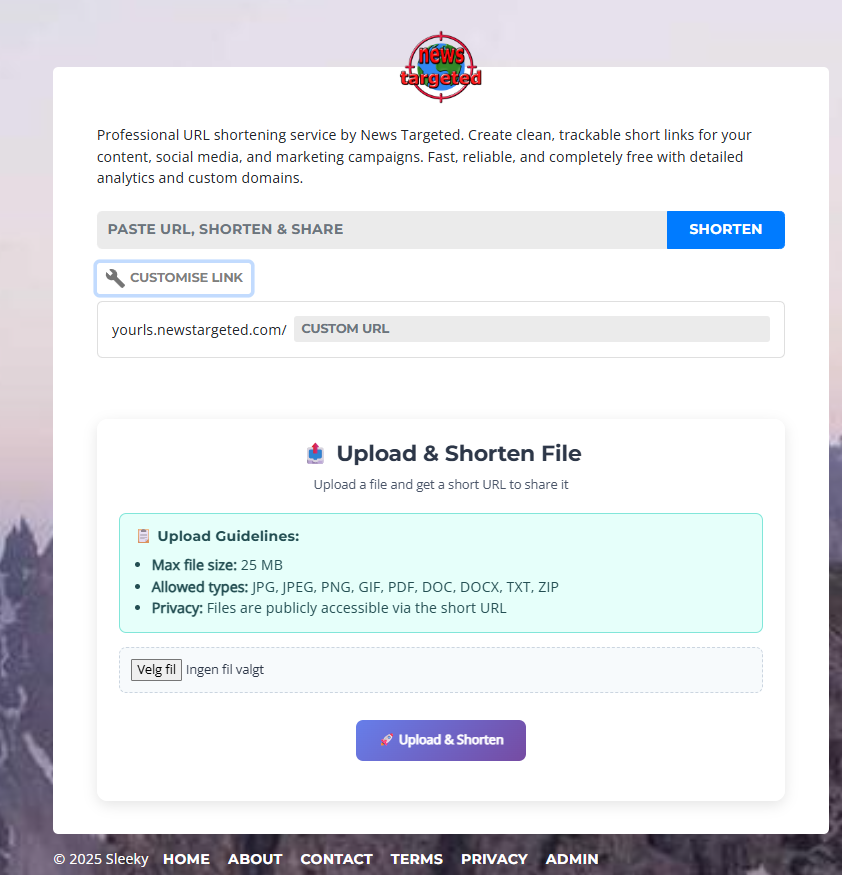 Beautiful public upload interface with file guidelines and easy-to-use controls
Frontend Features
- Drag & Drop - Modern file upload experience
- Progress Indicators - Real-time upload progress
- Copy to Clipboard - One-click URL copying
- Mobile Responsive - Works perfectly on phones and tablets
- File Guidelines - Clear instructions on allowed types and sizes
File Management
Manage all your uploaded files from the admin panel.
Viewing Files
- Go to Admin Panel → Uploaded Files
- Browse your file list with:
- File name and type
- Upload date
- File size
- Short URL
- Download count
- Expiration date
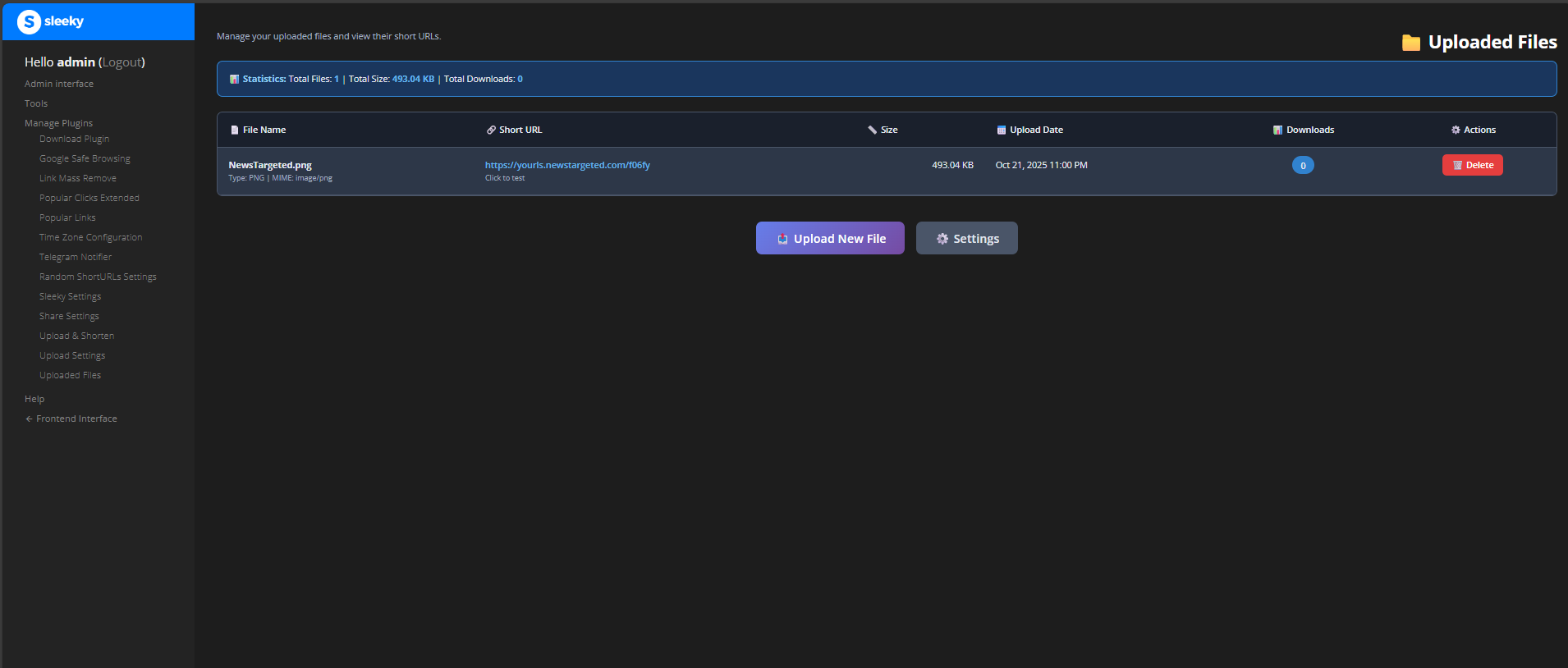 Manage all your uploaded files with detailed statistics and easy controls
File Actions
Available actions for each file:
- View Details - See complete file information
- Copy URL - Copy short URL to clipboard
- Download - Download the original file
- Extend Expiration - Postpone automatic deletion
- Delete - Remove file and short URL immediately
Bulk Operations
Manage multiple files at once:
- Select files using checkboxes
- Choose bulk action:
- Delete selected files
- Extend expiration for all
- Download selected files (as archive)
- Change storage location
- Confirm action
- Files are processed in batch
Filtering and Search
Find files quickly using:
- Search - Search by filename, title, or short URL
- Filter by Type - Show only specific file types
- Filter by Expiration - Show expiring or expired files
- Sort Options - Sort by date, size, downloads, or name
- Pagination - Navigate large file lists efficiently
Download Tracking
Track how your files are being accessed.
Statistics Available
For each uploaded file, you can view:
- Total Downloads - Number of times file was accessed
- Unique Visitors - Unique IP addresses that accessed the file
- Referrers - Where visitors came from
- Geographic Data - Where visitors are located (if enabled)
- Access Times - When the file was accessed
Accessing Statistics
- Go to Admin Panel → Uploaded Files
- Click “Stats” next to any file
- View detailed analytics:
- Daily/weekly/monthly downloads
- Top referrers
- Geographic distribution
- Access patterns
YOURLS Integration
File downloads are tracked through YOURLS analytics system:
- All standard YOURLS stats features work
- Use YOURLS plugins for extended analytics
- Export data using YOURLS tools
- API access for programmatic stats retrieval
Working with Short URLs
The plugin generates standard YOURLS short URLs with additional features.
URL Format
Short URLs follow your YOURLS configuration:
https://yourls.example.com/abc123
Custom Keywords
Choose memorable keywords:
- During upload, enter desired keyword in “Custom Short URL” field
- Plugin validates keyword availability
- If available, your custom URL is created
- If taken, you’ll be prompted to choose another
URL Management
Manage short URLs like any YOURLS link:
- Edit URL details in YOURLS admin
- View click statistics
- Add to URL groups/categories
- Set URL privacy options
- Share via social media buttons
Best Practices
For Administrators
- Regularly review uploaded files for abuse
- Monitor storage space usage
- Set appropriate file size limits
- Enable rate limiting to prevent abuse
- Use file expiration to manage storage
- Regular backups of upload directory
For File Sharing
- Use descriptive titles for better organization
- Set expiration dates for temporary files
- Use custom keywords for important files
- Monitor download statistics
- Keep sensitive files in protected locations
For Public Uploads
- Set stricter limits for public users
- Enable rate limiting
- Monitor uploads regularly
- Use CAPTCHA if spam is an issue (via extension)
- Clearly communicate terms of use
Common Workflows
Workflow 1: Quick File Sharing
- Navigate to Upload & Shorten page
- Drag and drop file
- Click upload
- Copy and share URL
Workflow 2: Organized File Management
- Create multiple storage locations for different purposes
- Upload files to appropriate locations
- Use descriptive titles and custom keywords
- Set expiration dates based on use case
- Monitor and clean up regularly
Workflow 3: Public File Distribution
- Enable frontend uploads with restrictions
- Set moderate size limits
- Enable rate limiting
- Monitor uploads in admin panel
- Remove inappropriate content promptly